


A hacked WordPress website can show many different symptoms: a blank screen, critical errors, redirects, spam pages, strange admin users, injected advertisements, browser malware warnings, broken plugins, or a completely inaccessible website.
The important thing is not to immediately delete everything.
A proper recovery process should first preserve evidence and backups, identify the compromised component, isolate the infection, restore legitimate files, secure the installation, and then verify that the attacker no longer has access.
This guide explains several recovery methods, including the practical approach that can be extremely useful when a plugin or cache component is responsible for the site’s failure.
1. First Understand What “Hacked” Means
A WordPress hack does not always mean that every file has been infected.
A compromise may involve:
- A vulnerable plugin
- A vulnerable theme
- Stolen WordPress credentials
- A compromised hosting account
- Malicious PHP files
- Modified
.htaccess - Injected JavaScript
- Database injections
- Unauthorized administrator accounts
- Backdoors
- Web shells
- Malicious cron jobs
- Modified WordPress core files
- Malicious cache files
- SEO spam
- Redirect malware
WordPress itself recommends documenting the symptoms and identifying indicators of compromise before beginning the cleanup.

2. Recognize the Symptoms
Common signs include:
Website Not Loading
You may see:
- 500 Internal Server Error
- 502 Bad Gateway
- 503 Service Unavailable
- White screen
- Critical error
- Server error
- Infinite redirects
WordPress Critical Error
You may see:
There has been a critical error on this website.
This can be caused by a compromised or broken plugin, theme, PHP incompatibility, or malicious code.
Unexpected Redirects
The website may redirect visitors to:
- Spam websites
- Gambling websites
- Fake stores
- Adult websites
- Malware pages
- Search spam pages
Strange Pages
You may suddenly find pages targeting keywords unrelated to your business.
Unauthorized Users
Check:
WordPress → Users
Look for administrator accounts that nobody on the team created.
Security Warnings
Google, browsers, antivirus software, or the hosting company may report malware.
3. Do Not Immediately Delete the Website
This is one of the most important rules.
Do not immediately:
- Delete the entire WordPress directory
- Delete the database
- Reinstall WordPress blindly
- Delete every plugin
- Restore an unknown backup
You may destroy useful evidence or legitimate website data.
Instead, create a snapshot first.
WordPress specifically recommends creating a backup/snapshot even after discovering a compromise because the infected copy can still be useful for investigation and recovery.
4. Create a Full Backup Before Cleaning
Create two backups if possible:
Backup A — Files
Download the entire WordPress installation.
This should include:
wp-admin/
wp-includes/
wp-content/
wp-config.php
.htaccess
index.php
other root files
Backup B — Database
Export the entire WordPress database using:
- phpMyAdmin
- Hosting database backup
- WP-CLI
- Your backup system
Keep the files and database together as one recovery set.
WordPress recommends treating the files and database as a combined backup set because both are required to reproduce the website.
5. Document the Hosting Environment
Before making changes, record:
Domain:
Hosting provider:
PHP version:
WordPress version:
Active theme:
Active plugins:
Database name:
PHP memory limit:
Server type:
SSL status:
Cloudflare/CDN:
Security plugins:
Recent changes:
Also record when the problem started.
For example:
Problem noticed:
14 August 2026
18:30 PKT

Last known working state:
14 August 2026
16:00 PKT
This can help identify what changed between the working and broken states.
6. Check the WordPress Debug Log
If WordPress is producing a critical error, the debug log can be extremely valuable.
In:
wp-config.phpyou can temporarily enable debugging:
define( 'WP_DEBUG', true );
define( 'WP_DEBUG_LOG', true );
define( 'WP_DEBUG_DISPLAY', false );
Then check:
/wp-content/debug.logLook for:
Fatal error
Uncaught Error
Uncaught TypeError
Parse error
Failed opening required
Call to undefined function
Call to undefined method
Pay particular attention to the plugin or theme path shown in the error.
For example:
/wp-content/plugins/example-plugin/...This can immediately identify the component causing the failure.
7. Use WordPress Recovery Mode When Available
Modern WordPress includes Recovery Mode.
When WordPress detects certain fatal PHP errors, it can provide a special recovery link allowing an administrator to log in and troubleshoot the problematic plugin or theme.
If you receive a Recovery Mode email:
- Open the recovery link.
- Log into WordPress.
- Check the error notice.
- Identify the problematic plugin/theme.
- Temporarily deactivate it.
- Test the website.
- Fix or replace the component.
If Recovery Mode isn’t available or the website cannot reach WordPress at all, use FTP/SFTP/File Manager instead.
8. The Fastest Diagnostic Method: Disable the Suspected Plugin
If the debug log clearly identifies a plugin, don’t immediately delete it.
Go to:
/wp-content/plugins/Find the suspected plugin.
For example:
seraphinite-acceleratorRename it:
seraphinite-accelerator-oldThen reload the website.
If the website immediately starts working, you have strong evidence that the plugin was responsible for the failure.
This is a diagnostic isolation technique, not proof that the entire website was infected by that plugin.
9. The Med Comply Global Recovery Approach
This was the particularly useful approach in our recovery.
The site had a broken Seraphinite Accelerator component.
The debug log pointed toward:
wp-content/plugins/seraphinite-accelerator-ext/Cmn/Gen.phpAt the same time, WordPress was loading:
wp-content/advanced-cache.phpThe important clue was that the caching layer was still attempting to use the broken accelerator extension.
Instead of deleting the website or rebuilding WordPress, we isolated both components.
Step 1 — Rename the extension
Original:
wp-content/plugins/seraphinite-accelerator-extRenamed to:
wp-content/plugins/seraphinite-accelerator-ext-oldStep 2 — Disable the advanced cache drop-in
Original:
wp-content/advanced-cache.phpRenamed to:
wp-content/advanced-cache.php-oldStep 3 — Reload the website
The site loaded again.
This was the key breakthrough.
The recovery worked because the broken accelerator extension and its cache drop-in were prevented from loading, while the rest of the WordPress installation remained intact.
Important
Do not blindly copy these exact filenames to every hacked WordPress website.
The names above were specific to that installation.
Your debug log should determine which component is actually responsible.
10. Why Renaming Can Be Better Than Deleting
Renaming a suspicious file or directory has an important advantage:
You can reverse the change.
For example:
plugin-namebecomes:
plugin-name-oldIf the diagnosis is wrong, you can rename it back.
Deleting immediately removes that recovery option.
For a compromised site, preserving evidence and keeping rollback options is usually preferable.
11. Check wp-content/mu-plugins
Do not only inspect:
wp-content/plugins/Also check:
wp-content/mu-plugins/Must-use plugins load automatically and can sometimes survive normal plugin deactivation.
Look for:
- Unknown PHP files
- Recently modified files
- Strange plugin names
- Obfuscated PHP
- Files that do not belong to known software
Do not delete legitimate hosting or security components without understanding what they do.
12. Check the .htaccess File
The root .htaccess file is an important location to inspect.
Look for unexpected:
RewriteRule
RewriteCond
Redirect
SetHandler
php_value
auto_prepend_file
especially rules redirecting visitors to unknown domains.
WordPress specifically identifies .htaccess as an important file to inspect during post-hack cleanup because attackers commonly modify it.
Also check for .htaccess files inside:
wp-content/
wp-content/uploads/
wp-content/plugins/
wp-content/themes/
Do not assume every .htaccess file is malicious; verify its purpose first.
13. Inspect the WordPress Core
The core directories are:
wp-admin/
wp-includes/
If you suspect core files have been modified, replacing them with clean official copies is generally safer than manually trying to repair every file.
WordPress recommends replacing core directories such as:
/wp-admin
/wp-includes
using the appropriate clean WordPress version rather than relying only on overwrite behavior.
Use the same WordPress version first when performing a forensic-style restoration if compatibility is a concern, then update to the latest secure release after stabilization.
14. Replace WordPress Core With Clean Files
A practical method is:
- Determine the installed WordPress version.
- Obtain a clean official WordPress package.
- Back up the existing installation.
- Replace:
wp-admin/
wp-includes/- Replace the WordPress root core files carefully.
- Preserve:
wp-content/
wp-config.php- Test the website.
Only use WordPress obtained from an official/trusted source. WordPress explicitly recommends keeping core updated and obtaining official releases from WordPress.org.
15. Inspect wp-content Carefully
The wp-content directory is where you need to be particularly careful.
It normally contains:
plugins/
themes/
uploads/
mu-plugins/
cache/
languages/
Look for:
- Unknown PHP files
- Recently modified files
- Random filenames
- PHP files inside uploads
- Suspicious cache files
- Unknown plugins
- Unknown themes
- Obfuscated code
The uploads directory deserves special attention.
Normally, media uploads are images, videos, documents, etc.
Unexpected PHP files inside upload directories can be a serious warning sign.
16. Inspect Recently Modified Files
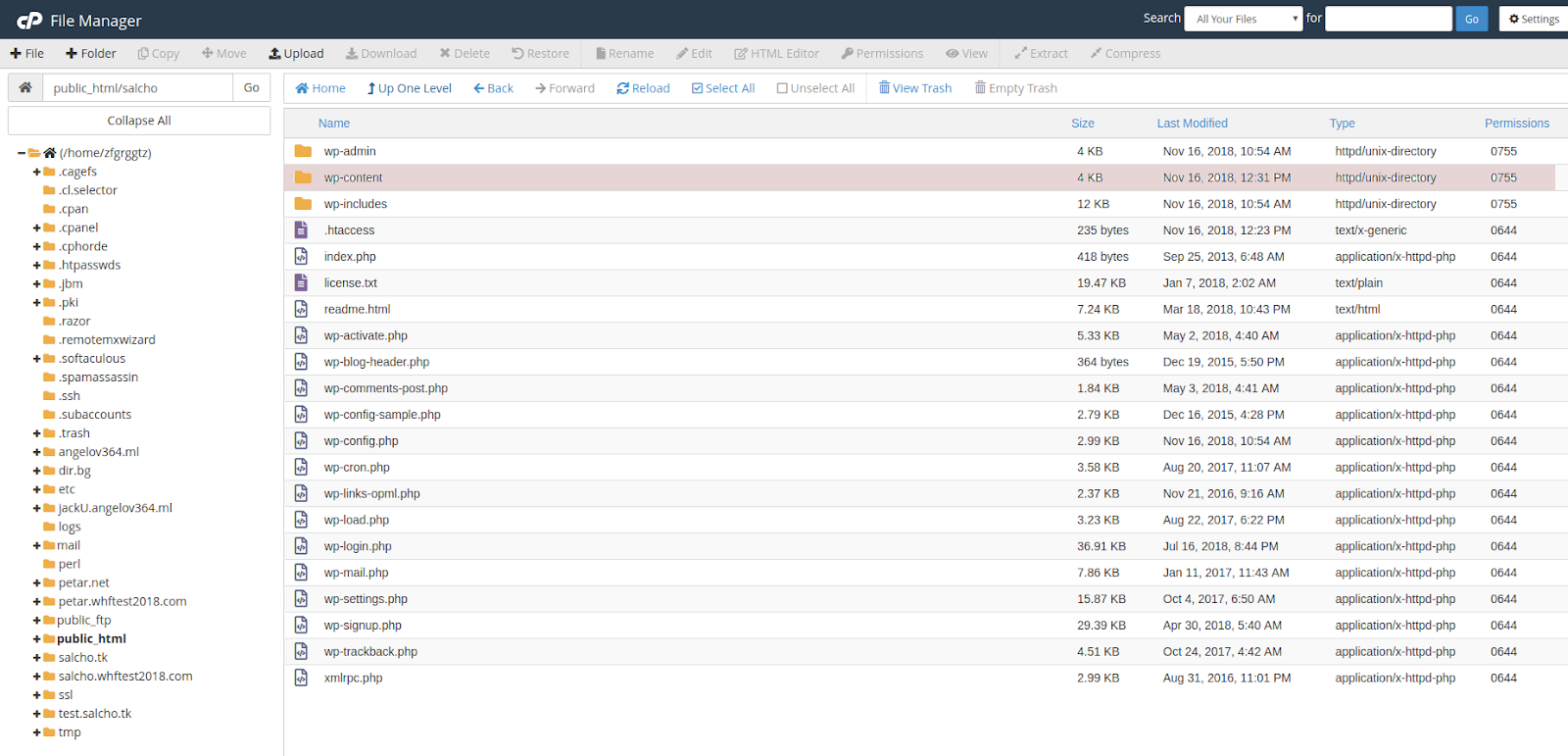
If the hosting panel provides a file manager, sort files by:
Last Modified
Look for clusters of files modified around the time the hack occurred.
For example:
14-Aug 18:31
14-Aug 18:32
14-Aug 18:32
14-Aug 18:33
If dozens of unrelated PHP files suddenly changed at the same time, investigate them.
However, modification timestamps alone do not prove malware. Plugins and updates can legitimately modify many files.
Use timestamps as a clue, not a verdict.
17. Scan the Website
After stabilizing the site, perform malware scans.
You can use:
- A reputable WordPress security scanner
- Hosting malware scanner
- External website scanner
- Manual file inspection
- Server-level malware scanner
A scan can identify:
- Backdoors
- Web shells
- Injected PHP
- SEO spam
- Suspicious JavaScript
- Modified core files
Remember that no single scanner is guaranteed to detect every infection.
18. Check the Database
Malware isn’t always stored in files.
Check the database for:
- Unknown administrator users
- Suspicious options
- Injected scripts
- Spam posts
- Spam pages
- Unknown widgets
- Modified site URLs
- Strange serialized values
- Suspicious JavaScript
- Malicious redirects
Check:
wp_users
wp_usermeta
wp_options
and inspect posts/pages if SEO spam is suspected.
19. Check WordPress Users
Go to:
Users → All Users
Look for:
- Unknown administrators
- Unknown editors
- Strange usernames
- Newly created accounts
- Accounts with suspicious email addresses
Remove unauthorized accounts after preserving relevant evidence.
WordPress recommends resetting access after a compromise, including administrator credentials.
20. Reset All Important Passwords
Do not only change the WordPress administrator password.
Change:
WordPress
Admin password
Other admin accounts
Hosting
Hosting account
Control panel
FTP/SFTP
FTP/SFTP passwordsSSH
SSH credentialsDatabase
Database user passwordHosting/email credentialsAPI Keys
Rotate important API keys if they may have been exposed.
21. Regenerate WordPress Salts
In:
wp-config.phpWordPress uses authentication keys and salts.
After a compromise, regenerating these values can invalidate existing WordPress authentication cookies.
WordPress’s hacked-site guidance recommends updating the secret keys after identifying a compromise so potentially active sessions are invalidated.
22. Disable Dashboard File Editing
Add:
define( 'DISALLOW_FILE_EDIT', true );to:
wp-config.phpThis removes the built-in WordPress theme/plugin code editor from the dashboard.
It does not prevent every form of malware or file upload, but it removes one easy route for code modification if an administrator account is compromised.
WordPress recommends this as one of its hardening measures.
23. Update Everything
Once the site is stable and clean, update:
- WordPress
- Plugins
- Themes
- PHP
- Security components
- Server software where applicable
Old plugins and themes are a common attack surface.
WordPress’s security documentation strongly emphasizes keeping WordPress, plugins, and themes updated.
24. Remove Unused Plugins and Themes
If something is not needed:
Delete it.
Do not keep:
Old plugins
Unused themes
Pirated plugins
Pirated themes
Abandoned extensions
Unknown plugins
WordPress specifically recommends deleting plugins that are no longer being used and obtaining themes/plugins from trusted sources.
25. Never Use Nulled Plugins or Themes
One of the easiest ways to introduce malware is installing modified premium software from unofficial websites.
Avoid:
Nulled themes
Nulled plugins
Cracked plugins
Pirated WordPress themes
Unknown ZIP files
Use:
- WordPress.org
- Official developer websites
- Trusted marketplaces
- Your legitimate purchased copies
Official WordPress guidance also warns against plugins and themes from untrusted sources.
26. Check Cron Jobs
Check your hosting panel for:
Cron Jobs
Look for unknown jobs executing:
php
wget
curl
base64
unknown scripts
temporary files
Malware sometimes uses scheduled tasks to recreate deleted files.
If you remove a malicious file and it repeatedly comes back, investigate cron jobs and other persistence mechanisms.
27. Check Server-Level Files
Depending on the hosting environment, inspect:
public_html/
domains/
tmp/
logs/
cgi-bin/
Also check:
.user.ini
php.ini
.htaccess
for suspicious configuration such as:
auto_prepend_file
auto_append_file
These settings can cause malicious code to load before or after legitimate PHP files.
28. If You Cannot Access WordPress Admin
You can still recover the site through:
File Manager
Rename the suspected plugin directory.
FTP/SFTP
Upload clean files and replace damaged components.
SSH
Use command-line tools to inspect and replace files.
phpMyAdmin
Reset administrator information or inspect the database.
WordPress documentation specifically notes that phpMyAdmin/Adminer can be used to regain access to a compromised administrator account by working directly with the database.
29. If the Plugin Is Clearly the Problem
Use this decision process:
Debug log identifies plugin
          ↓
Rename plugin directory
          ↓
Website loads?
       ↙     ↘
     YES      NO
      ↓        ↓
Replace/      Continue
remove        investigation
plugin
This is one of the fastest ways to isolate a broken installation.
30. If a Cache Plugin Is Involved
Caching plugins deserve special attention because some WordPress caching systems use drop-in files.
For example:
wp-content/advanced-cache.phpmay load before normal plugin execution.
If a caching system is broken, disabling the normal plugin directory may not be sufficient because its cache drop-in can remain active.
In a case like our Med Comply Global recovery, renaming the broken extension and the associated advanced-cache.php drop-in allowed WordPress to stop loading the broken caching component.
Always verify the exact cache system before removing or renaming its files.
31. When to Restore a Backup Instead
Sometimes cleaning is not the best option.
Restore a known-clean backup when:
- The infection is widespread.
- Multiple core files are compromised.
- The database is heavily contaminated.
- You have a verified backup from before the compromise.
- You cannot establish what was modified.
- The attacker has persistent access.
But verify the backup first.
A backup created after the compromise may already contain malware.
32. When a Fresh WordPress Installation Is Better
For severe compromises, a clean rebuild can be safer.
The process can be:
Backup database/media
        ↓
Create fresh WordPress installation
        ↓
Install clean themes/plugins
        ↓
Import legitimate content
        ↓
Restore media carefully
        ↓
Reconnect integrations
        ↓
Secure installation
        ↓
Test
Do not blindly copy the entire old wp-content directory into the new installation because that can reintroduce the infection.
33. Verify the Site After Cleanup
Don’t stop when the homepage loads.
Test:
Frontend
- Homepage
- About page
- Services
- Blog
- Contact
- Forms
- Search
- WooCommerce
- Mobile layout
Backend
- Login
- Dashboard
- Users
- Plugins
- Themes
- Media
- Posts
- Settings
Integrations
- SMTP
- APIs
- Payment gateways
- Forms
- CRM
- Analytics
- Google services
34. Check for Malware Persistence
After cleaning, monitor the site.
If a deleted malicious file returns, something is still compromised.
Investigate:
- Unknown administrator
- Plugin backdoor
- Theme backdoor
- Cron job
.htaccess.user.ini- PHP configuration
- Hosting account
- FTP/SFTP credentials
- Database
- Server-level compromise
The goal isn’t just to remove the visible malware. You need to remove the mechanism that can recreate it.
35. Check Google Search Console
If the website was compromised, check:
Google Search Console
Look for:
- Security Issues
- Manual Actions
- Indexed spam pages
- Unexpected URLs
- Search performance anomalies
Google may continue showing previously indexed hacked URLs even after the website is cleaned.
Don’t panic if old URLs remain temporarily. Search engines need to recrawl the site.
36. Request a Security Review
If Google has flagged the website for malware, clean the site first.
Then use Search Console to request a review.
Do not request a review while malware is still present.
37. Clear Website Cache After Recovery
Once the website is clean:
Clear:
- WordPress cache
- Plugin cache
- Server cache
- CDN cache
- Cloudflare cache if applicable
- Browser cache when testing
This is particularly important if the hacked content was cached.
However, cache clearing is not malware removal.
It only removes cached versions.
38. Add a Security Layer
After recovery, implement additional protection.
Possible layers include:
WordPress Security Plugin
Use a reputable security plugin for:
- Malware scanning
- Login protection
- Firewall
- File monitoring
- Security alerts
Web Application Firewall
A WAF can filter malicious traffic before requests reach WordPress.
WordPress’s hardening documentation discusses both WordPress-level firewalls and server/reverse-proxy WAF approaches.
Two-Factor Authentication
Enable 2FA for administrator accounts where practical.
Login Protection
Use:
- Strong passwords
- Login rate limiting
- 2FA
- Limited administrator accounts
39. Use Proper File Permissions
Incorrect permissions can increase the risk of unauthorized modification.
A common baseline is:
Directories: 755
Files:       644
However, hosting environments differ, so don’t blindly apply permissions without understanding the server’s ownership model.
WordPress provides these as common permission examples in its hardening documentation.
40. Secure wp-config.php
Protect:
wp-config.phpIt contains sensitive database credentials and configuration information.
Where supported, WordPress notes that wp-config.php can be placed one directory above the web root, although this should only be done when the hosting setup supports it correctly.
41. Create a Real Backup Strategy
Don’t wait for the next hack.
Maintain:
Daily/Regular Database Backup
Contains:
Posts
Pages
Users
Settings
WooCommerce data
Comments
Full File Backup
Contains:
WordPress core
Plugins
Themes
Uploads
Configuration
Off-Site Backup
Keep at least one backup away from the hosting account.
If the hosting account itself is compromised, backups stored in the same account may also be at risk.
42. The Complete Recovery Decision Tree
Use this simplified process:
SITE HACKED
     │
     ▼
Document symptoms
     │
     ▼
Create full backup
     │
     ▼
Check debug.log
     │
     ▼
Identify suspected component
     │
     ├── Plugin?
     │      ↓
     │   Rename plugin
     │
     ├── Theme?
     │      ↓
     │   Switch/replace theme
     │
     ├── Cache?
     │      ↓
     │   Disable plugin + cache drop-in
     │
     ├── Core?
     │      ↓
     │   Replace with clean WordPress files
     │
     └── Unknown?
            ↓
       Full malware investigation
            │
            ▼
       Scan files/database
            │
            ▼
       Remove persistence
            │
            ▼
       Reset credentials
            │
            ▼
       Update everything
            │
            ▼
       Harden website
            │
            ▼
       Test entire website
            │
            ▼
       Search Console review
            │
            ▼
       Monitor
43. The Most Important Lesson From the Med Comply Global Recovery
The biggest lesson from that recovery was:
Don’t assume that a hacked or broken WordPress website needs to be completely rebuilt.
The debug log gave us a very specific clue.
Instead of:
Delete WordPress
↓
Reinstall everything
↓
Hope it works
we followed:
Debug
↓
Identify failing component
↓
Isolate component
↓
Disable associated cache layer
↓
Reload website
↓
Confirm recovery
↓
Continue security investigation
That approach preserved the existing website while removing the immediate failure point.
In that case, the critical combination was:
seraphinite-accelerator-extand:
advanced-cache.phpRenaming those components stopped the broken accelerator from being loaded and brought the website back online.
This is a site-specific recovery technique, not a universal malware-removal command.
44. Recovery Is Not Finished When the Homepage Loads
This distinction is critical.
There are two separate objectives:
Phase 1 — Restore Availability
Make the website load again.
Phase 2 — Establish Security
Determine:
- How the attacker entered
- What was modified
- Whether a backdoor remains
- Whether credentials were stolen
- Whether the database was modified
- Whether other files are infected
- Whether the vulnerability still exists
A website can load perfectly while still being compromised.
WordPress’s official hacked-site guidance explicitly separates finding/removing the hack from updating, resetting credentials, performing forensics, and securing the site.
45. Final Recovery Checklist
Before declaring a hacked WordPress website recovered:
- Full files backup created
- Full database backup created
- Symptoms documented
- Debug log reviewed
- Suspicious plugin/theme identified
- Suspicious components isolated
.htaccesscheckedwp-config.phpcheckedadvanced-cache.phpcheckedmu-pluginschecked- Uploads directory checked
- WordPress core verified
- Plugins verified
- Themes verified
- Database inspected
- Unauthorized users removed
- Hosting password changed
- WordPress passwords changed
- FTP/SFTP credentials changed
- Database credentials reviewed
- WordPress salts regenerated
- API credentials reviewed/rotated
- WordPress updated
- Plugins updated
- Themes updated
- Unused plugins removed
- Unused themes removed
- Security scanner completed
- Website tested
- Forms tested
- Email tested
- WooCommerce tested if applicable
- Cache purged
- CDN cache purged
- Search Console checked
- Security warnings checked
- WAF/security layer enabled
- 2FA enabled for administrators
- New clean backup created
- Website monitored after recovery
Conclusion
Recovering a hacked WordPress website does not always require deleting the entire installation and starting again.
The safest approach is methodical:
Backup → Document → Diagnose → Isolate → Clean → Replace compromised files → Reset access → Update → Harden → Verify → Monitor.
The most powerful part of the process is often the diagnosis. A WordPress debug log can reveal the exact plugin, theme, file, or PHP component responsible for a critical failure. Once that component is isolated, the website can sometimes be restored without rebuilding the entire installation.
The Med Comply Global recovery demonstrated this particularly well: rather than destroying the existing site, we identified the failing accelerator components, isolated the seraphinite-accelerator-ext directory and advanced-cache.php, and restored the website’s functionality.
However, restoring the site is only the first half of recovery. A complete malware response must also investigate the original entry point, remove persistence, rotate credentials, update vulnerable software, harden the installation, and monitor the website afterward.
That is what turns a temporary fix into a proper WordPress security recovery.


