—
Introduction – Why “Responsive” Is No Longer an Option, But a Must
Imagine a user lands on your website from a smartphone, taps a link, and the page loads in a jumbled mess of tiny text, horizontal scrollbars, and broken images. Within seconds, that visitor is likely to click the back button, fire off a negative review, or worse—never return.
That scenario is the exact opposite of what modern users expect. According to Google’s Mobile‑First Indexing rollout, over 60 % of global web traffic now comes from mobile devices, and search rankings are increasingly tied to mobile‑friendliness. In short, if your site isn’t responsive, you’re losing traffic, leads, and revenue before you even get a chance to make a good impression.
Responsive web design (RWD) is the discipline of crafting web pages that adapt fluidly to any screen size, orientation, or device—from tiny smartwatches to massive 4K monitors—while preserving usability, performance, and brand consistency.
In this 2,000‑word guide we’ll walk you through the core principles, practical tools, and step‑by‑step techniques you need to build truly responsive sites that delight users and satisfy search engines. Ready to future‑proof your digital presence? Let’s dive in.
—
1. Foundations of Responsive Web Design
#### 1.1 What Exactly Is “Responsive”?
Responsive web design is more than a buzzword; it’s a set of design and development strategies that let a single HTML codebase serve multiple devices. The three pillars that make this possible are:
| Pillar | Description | Why It Matters |
|——–|————-|—————-|
| Fluid Grids | Layouts based on relative units (percentages, `fr` in CSS Grid) instead of fixed pixels. | Enables elements to scale proportionally as the viewport changes. |
| Flexible Media | Images, videos, and other assets that resize or swap based on screen size (e.g., `srcset`, `picture`). | Prevents overflow, reduces bandwidth, and improves load speed on mobile. |
| Media Queries | CSS rules that trigger at defined breakpoints (e.g., `@media (max-width: 768px)`). | Allows you to tailor styles for specific device widths, orientations, or pixel densities. |
When these three work together, the result is a seamless, device‑agnostic experience—the hallmark of modern UX and a key SEO signal.
#### 1.2 Mobile‑First vs. Desktop‑First
Two philosophies dominate responsive workflows:
| Approach | How It Starts | Typical Use Cases |
|———-|—————|——————-|
| Mobile‑First | Write CSS for the smallest screen first, then add breakpoints for larger viewports. | Ideal for startups, content‑heavy blogs, and any site where mobile traffic dominates. |
| Desktop‑First | Begin with a full‑width desktop layout, then shrink down with media queries. | Works for legacy enterprise sites that were originally desktop‑only. |
Why Mobile‑First Wins for SEO
Google’s crawler evaluates the mobile version of a page first. A mobile‑first stylesheet ensures that the most critical content and navigation are already optimized for the smallest screens, reducing the risk of hidden or missing elements during indexing.
#### 1.3 Core SEO Benefits of Responsive Design
1. Single URL, Single HTML – Eliminates duplicate‑content issues that arise from separate mobile URLs (`m.example.com`).
2. Faster Page Speed – Properly sized images and CSS/JS minification improve Core Web Vitals, a ranking factor.
3. Improved Crawl Efficiency – Googlebot only needs to index one version, saving crawl budget.
4. Better User Metrics – Lower bounce rates and higher dwell time on mobile boost rankings indirectly.
Takeaway: Responsive design is a technical SEO foundation that supports every other optimization you’ll ever do.
—
2. Planning Your Responsive Layout: Grids, Breakpoints, and Content Prioritization
#### 2.1 Choosing the Right Grid System
A solid grid gives you a predictable structure for placing elements across breakpoints. The most popular options are:
| Grid System | Key Features | When to Use |
|————-|————–|————-|
| CSS Flexbox | One‑dimensional (row or column), great for navigation bars, cards, and simple layouts. | Small UI components, linear flows. |
| CSS Grid | Two‑dimensional, allows explicit row/column placement, ideal for complex page structures. | Full‑page layouts, magazine‑style designs. |
| Framework Grids (Bootstrap, Tailwind, Foundation) | Pre‑built responsive classes, rapid prototyping. | Projects with tight deadlines or teams already using the framework. |
Actionable tip: For most modern sites, combine Flexbox for component-level alignment and CSS Grid for the overall page skeleton. This hybrid approach gives you the flexibility of both systems without over‑complicating the CSS.
#### 2.2 Defining Breakpoints That Make Sense
Breakpoints are the “when” in responsive design—the exact viewport widths where the layout should change. Rather than arbitrarily copying Bootstrap’s default breakpoints, follow these steps:
1. Analyze Your Analytics – Look at device distribution (e.g., 320 px phones, 768 px tablets, 1024 px laptops).
2. Design Around Content – Identify natural points where elements start to look cramped or overly spaced.
3. Use Content‑Based Breakpoints – Instead of “mobile vs. tablet vs. desktop,” set breakpoints where the design breaks (e.g., when a three‑column grid collapses to two).
Typical content‑driven breakpoints:
“`css
/ Mobile – up to 599px /
@media (max-width: 599px) { … }
/ Small Tablet – 600‑899px /
@media (min-width: 600px) and (max-width: 899px) { … }
/ Large Tablet / Small Desktop – 900‑1199px /
@media (min-width: 900px) and (max-width: 1199px) { … }
/ Desktop – 1200px and above /
@media (min-width: 1200px) { … }
“`
Pro tip: Keep the number of breakpoints low—three to four is usually enough. Too many media queries increase CSS size and maintenance overhead.
#### 2.3 Prioritizing Content with a Mobile‑First Mindset
When you shrink the viewport, you inevitably lose space. Ask yourself: “What does the user need most on a small screen?”
1. Primary Navigation – Keep the main menu accessible (hamburger icon, sticky top bar).
2. Core CTA – Ensure the most important call‑to‑action is visible without scrolling.
3. Key Content – Show headlines, brief summaries, and images that convey the page’s purpose quickly.
Actionable workflow:
| Step | Action | Tool |
|——|——–|——|
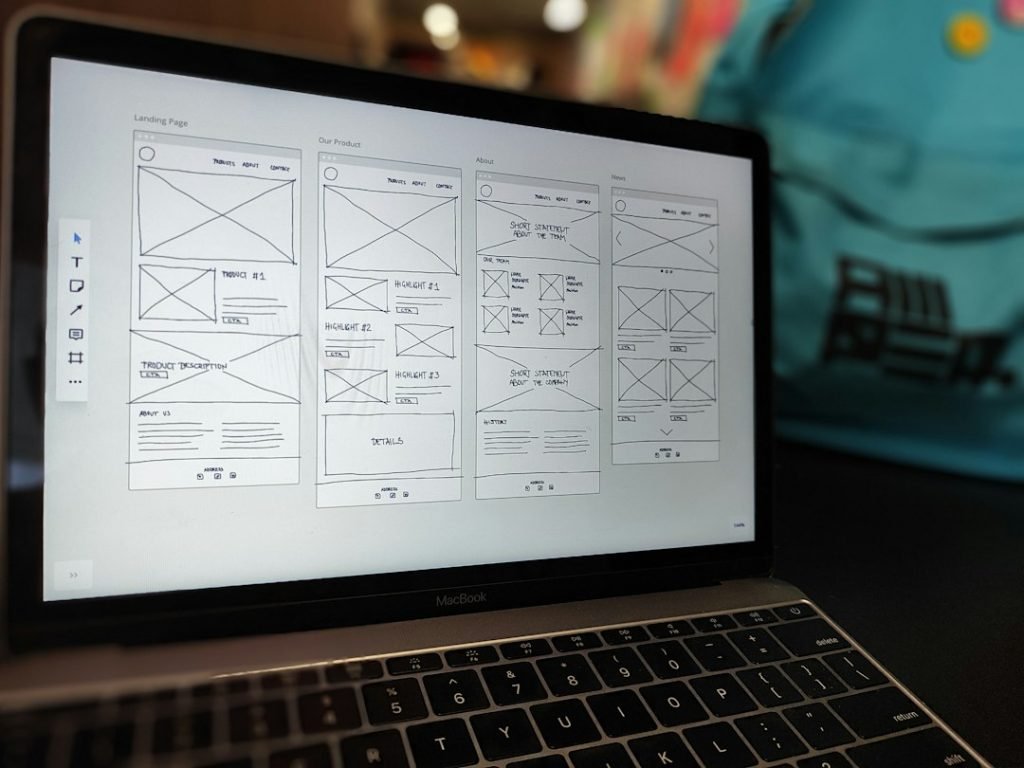
| 1 | Sketch the mobile version first (paper or digital). | Figma, Sketch, Adobe XD |
| 2 | Identify elements to hide or reorder on larger screens. | Chrome DevTools → Responsive Mode |
| 3 | Write CSS that adds progressive enhancement for larger breakpoints. | VS Code, PostCSS |
By designing for the smallest screen first, you guarantee that essential information never gets lost when the layout expands.
—
3. Implementing Responsive Techniques: Code, Images, and Performance
#### 3.1 Fluid Grids in Practice
Here’s a minimal example using CSS Grid to create a three‑column layout that collapses to a single column on mobile:
“`html
“`
“`css
.grid-container {
display: grid;
grid-template-areas:
“header header header”
“nav nav nav”
“main main sidebar”
“footer footer footer”;
grid-gap: 1rem;
}
/ Mobile – single column /
@media (max-width: 599px) {
.grid-container {
grid-template-areas:
“header”
“nav”
“main”
“sidebar”
“footer”;
grid-template-columns: 1fr;
}
}
/ Tablet – two columns /
@media (min-width: 600px) and (max-width: 899px) {
.grid-container {
grid-template-areas:
“header header”
“nav nav”
“main sidebar”
“footer footer”;
grid-template-columns: 2fr 1fr;
}
}
/ Desktop – three columns /
@media (min-width: 900px) {
.grid-container {
grid-template-columns: 1fr 3fr 1fr;
}
}
“`
What’s happening?
- The `grid-template-areas` define a visual map that’s easy to read.
- Each breakpoint re‑assigns the areas, allowing the sidebar to move under the main content on tablets, and sit beside it on desktops.
- `srcset` lists image files with their intrinsic widths.
- `sizes` tells the browser how much viewport width the image will occupy at each breakpoint, letting it pick the optimal file.
- The heading will never shrink below `1.5rem` nor grow beyond `3rem`, scaling proportionally with viewport width (`4vw`).
- Chrome → `Ctrl+Shift+I` → toggle device toolbar (`Ctrl+Shift+M`).
- Firefox → `Ctrl+Shift+M`.
- Safari → Develop → Show Responsive Design Mode.
#### 3.2 Flexible Images & the `srcset` Attribute
Large, unoptimized images are the #1 cause of slow mobile page loads. Use responsive images to serve the right size:
“`html
<img
src=”hero-800.jpg”
srcset=”
hero-400.jpg 400w,
hero-800.jpg 800w,
hero-1200.jpg 1200w”
sizes=”(max-width: 599px) 100vw,
(max-width: 899px) 50vw,
33vw”
alt=”Hero image of a responsive website”>
“`
Additional tip: Combine `srcset` with the “ element for art‑direction (different crops for mobile vs. desktop).
#### 3.3 Media Queries for Typography & UI Scaling
Responsive design isn’t just about layout; type and UI controls must adapt too. Use `clamp()` for fluid typography:
“`css
h1 {
font-size: clamp(1.5rem, 4vw, 3rem);
}
“`
Button sizing can follow a similar pattern:
“`css
button {
padding: clamp(0.5rem, 2vh, 1rem) clamp(1rem, 4vw, 2rem);
font-size: clamp(0.9rem, 2.5vw, 1.2rem);
}
“`
#### 3.4 Performance Optimizations That Complement Responsiveness
| Technique | How It Helps Responsive UX | Implementation |
|———–|—————————-|—————-|
| Critical CSS | Renders above‑the‑fold content instantly on any device. | Use tools like Critical or Penthouse to inline critical rules. |
| Lazy Loading | Defers off‑screen images, saving bandwidth on mobile. | Add `loading=”lazy”` to `` tags or use IntersectionObserver. |
| CSS Minification & GZIP | Reduces file size, speeding up CSS delivery. | Configure Webpack, Parcel, or use server‑side compression. |
| HTTP/2 Server Push | Sends needed CSS/JS early, cutting round‑trips. | Enable on Apache/Nginx or via CDN settings. |
| Font Display Swap | Prevents invisible text while custom fonts load. | `@font-face { font-display: swap; }` |
Checklist for each page:
1. ✅ Verify image widths with Chrome DevTools → Network (check “Transferred” size).
2. ✅ Run Lighthouse audit – aim for ≥ 90 on Performance, Accessibility, and SEO.
3. ✅ Test on real devices (iPhone, Android, tablet) in addition to emulators.
—
4. Testing, Debugging, and Maintaining a Responsive Site
#### 4.1 Browser DevTools & Device Emulation
All major browsers now ship responsive design mode:
Use these tools to:
1. Inspect CSS at each breakpoint – toggle on/off media queries.
2. Check touch target size – ensure tap areas are ≥ 48 px per Google’s guidelines.
3. Simulate network throttling – set to “Slow 3G” to see how lazy loading behaves.
#### 4.2 Automated Visual Regression Testing
Manual testing is great, but for larger projects you’ll want **CI‑integrated visual